Getting Started
A Practice Admin is responsible for installing the Solo with Teams App into their Microsoft Teams tenant. Work with your Account Manager and Solution Services contacts on your Teladoc Healthteam to enable this integration
Add Solo to Teams
The Practice Admin is responsible for adding the Solo software to Microsoft Teams tenant.
- Click here to log into the Microsoft Teams tenant administration tool.
- Navigate to the Microsoft Teams Apps and select Manage Apps to install the Solo with Teams App.
- Select the Permissions tab and then Review permissions to approve permissions.
- Optionally pin the App following the Teams policy.
Note: Teladoc Health will provide the correct version of the Solo App for you to install.
Open Solo in Teams
Work with your Account Manager and Solution Services contacts on your Teladoc Healthteam to enable the integration for your practice
Note: Make sure your camera and microphone have been enabled.
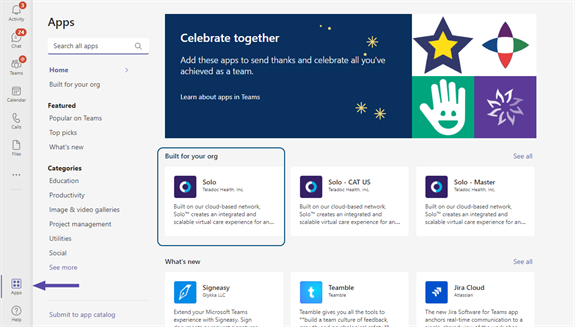
- From the Teams interface, click on the Apps icon in the lower left corner of the screen.
- A screen called Apps will open in Teams.
- Select your Solo application.
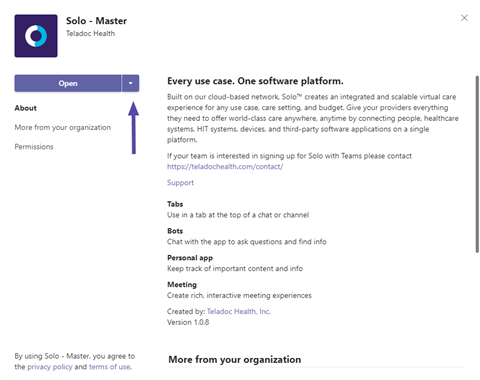
- If the Teladoc Health Solo with Teams App has been installed, select the Open button. For questions,, contact your Practice Admin
- When done, select Continue.
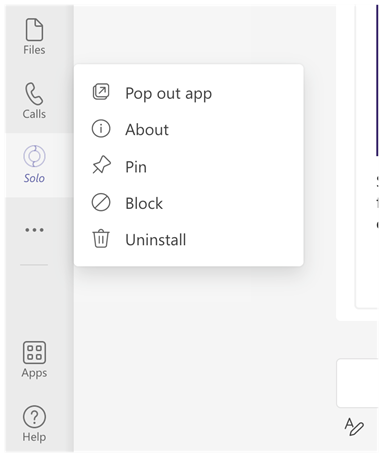
Pin Apps
Click on Solo from the left Teams toolbar to pin it. You can also drag the Solo App to rearrange its location on the toolbar. If it is already pinned, your Teams administrator may have already set it up.