Dashboard
The Teladoc Health Solo application opens in the Microsoft Teams application with tabs that enable the features of the Solo for Teams App.
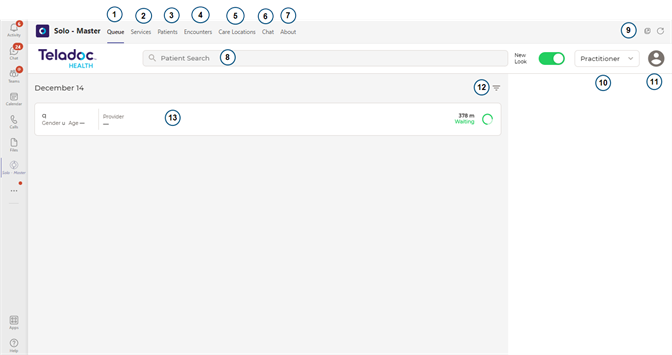
| Element | Description |
|---|---|
| 1 | Queue tab: The Queue tab contains all the appointments scheduled within a 24 hour period. |
| 2 | Services tab: The Services tab contains the Services available for your practice. |
| 3 | Patient tab: The Patient tab contains the Solo functionality a practitioner requires to manage a patient's information, schedule, surveys, and more. |
| 4 | Encounters tab: The Encounters tab contains the functionality to manage, edit, and create your sessions. |
| 5 | Care Locations tab: The Care Location tab contains all the devices, or Care Locations, your administrator has added to your account. |
| 6 | Chat tab: The Chat tab contains help information. Select to view a tour or help. |
| 7 | About tab: The About tab contains information about your Solo application within Teams. |
| 8 | Patient Search: A patient search bar allows users to search for their patients using a drop down menu, or an Advanced search. |
| 9 | Help: A question mark represents help. Click on it to navigate to the Teladoc Health online help site. |
| 10 | Role selection: A pull down menu is provided for you to alternate between a Practice Admin and Practitioner role This option is only available if one has both a Practitioner and Administration role. |
| 11 | User icon: A drop down provides the functionality for you to create a profile, set practice settings, navigate to the dashboard, pre-call diagnostics, or obtain support. |
| 12 | Filter icon: The Filter icon enables a filter to search for patients and other information using a variety of properties. |
| 13 | Main interface: In this example the Queue tab is selected and an encounters bar is shown. |